• Feed RSS
Showing posts with label Mac Apps. Show all posts

Moom: Window Management Rethought

"
One thing that the latest version of Windows does well is managing application windows. With easy keyboard shortcuts you can flip through visual representations of each of your open programs and instantly resize or move windows. There are several Mac applications available that emulate some of these features, a number of which we’ve reviewed in the past.
Moom is an interesting new option, offered by Many Tricks, a small independent company that produces several very good Mac apps. I’ve long relied on their Witch to improve OS X’s built-in app switching, and I use Desktop Curtain whenever I need to cover up my messy desktop to take screenshots. Moom takes its name from the conjoining of “Move” and “Zoom”, as these are the two main things you can do with the app.
Join us after the jump to see how Moom works.

Simple functions

Moom allows you to work with keyboard shortcuts or the mouse, or to mix up the two. The simplest way to interact with the app is to mouseover the green resize button at the top-left of most application windows. When you have Moom running, you will usually then see a small palette appear with a number of rectangles representing different window states.
screenshot
Moom hover state
I say ‘usually’ because Moom doesn’t work with every window. For instance, the app I’m using to write this review, iA Writer, appears to be immune.
Each of those rectangles shows the position the window will be shifted to if you click on it: fullscreen, moved to left or right screen edge and filling half the screen, moved to top or bottom edge and filling half the screen. The ‘person’ shape on the left drops down the custom controls menu, which I’ll return to shortly.
Holding down the Option key when Moom’s control palette is showing changes the control rectangles so that they look like this:
screenshot
Hold down option to see more sizes
As you’d expect, these controls will centre your window onscreen, or change it to quarter-screen size and move it to your choice of screen corners.

More control

By switching on the control to ‘Enable Move & Zoom grid…’ in Moom’s Mouse preferences, you get more granular and per-use control of how the app works. Now when you mouseover the resize button, along with the preset window size and position control you’ll also see a grid.
screenshot
Use the grid for manual sizing
Clicking and dragging on the grid will display a shadow outline of your window’s new dimensions and position, and when you release the mouse, the window will ‘moom’ into that space.
screenshot
Resizing a window
Another important setting in Preferences is ‘Enable access to custom controls’. When this is ticked, you’ll see the figure outline on the left of the palette, as in the screenshots above. Custom controls allow you to set your own window triggers and responses. Through the Custom panel of Preferences, you can define actions and keyboard shortcuts that can specify exactly where you want your windows to move to, what size they should be, or particular arrangements they should assume.

Keyboard mode

The Keyboard panel in Preferences allows you to set up a shortcut to enter keyboard control mode.
screenshot
Keyboard shortcuts
You can also select whether or not a cheat sheet is displayed, and whether or not double-tapping the shortcut shows a screen grid (which gives you the same advantages of grid control as above, but by keyboard shortcut).
screenshot
A visual cheatcheet for shortcuts
The cheat sheet here is self-explanatory, and a little bit of playing around with combinations of keys will quickly demonstrate how easy it is to do everything that’s available in Mouse mode without lifting your fingers from the keyboard.

How Was It?

I’ve used SizeUp for a while now. Although it’s great having this kind of control of windows when I need it, most of the time I forget that the app is even running. I also know that when I work on PCs running Windows 7, I usually forget that these controls are available. But whether in Windows or via SizeUp on my MacBook, I’m always really pleased when I suddenly remember what’s possible, especially since that memory often solves an issue or simplifies a process.
In theory, Moom is just the same. Once it’s set up, it runs quietly in the background, and is there whenever you need to alter a window’s position or size, whether you choose to use the keyboard or mouse to do so.
However, I’ve had a few problems with Moom. You may have noticed in the full screen screenshots above that I’ve had both Activity Monitor and Console running while I’ve been writing this review. That’s because Moom has frozen so many times, and I’ve needed to periodically kill it in Activity Monitor, and then read through the Console’s logs to confirm that something is up with Moom. Now, I’m no techie, so I can’t make much of the logs, but I certainly know enough to see that logs are being written, and that Console is recording errors with Moom (all variations of CGContext errors, in case that means anything to you). Could these be issues with my old MacBook’s graphics card? What I see is that it’s impossible for me to open up Moom’s Preferences and then click through the different sections without the app freezing.
That makes it really difficult for me to give Moom a score. Once I’ve set it up as I want, I can forget about it and enjoy the fact that it works straightforwardly and well, and doesn’t seem to freeze. But if I ever want to change anything or add new custom rules, I know I’m in for instability and app freezes. All of this adds up to me deciding to stick with SizeUp. If you don’t already have an app that adds similar functionality to your Mac, and you’re interested to try one, perhaps it’s worth the few bucks that Moom cost. As I said, it works fine most of the time, so long as I don’t try to change anything.

What Do You Think?

Your mileage, of course, may vary. If you’ve tried Moom, did you encounter similar issues? And, in general, is this a class of apps that you’d be interested in running?
"
read more

VirtualDJ Home: Awesome Free DJ Software

"
VirtualDJ was first released in 2003 and over the years has grown into a real success story for Atomix Productions, providing professional DJ’s and hobbyists with effective DJ software. Originally sold in shops, this multi-platform ‘Home’ version is now available for free in the Mac App Store and sees the developers adopt an innovative pricing model to offer a largely uncrippled and feature-packed app in the hope of enticing users to eventually upgrade, with the end result being a big win for the consumer.
Let’s take a closer look at this innovative App Store favourite.

First Impressions

VirtualDJ Home's UI
VirtualDJ Home's UI
Upon launch, VirtualDJ Home simply feels like a quality product, with slick graphics and a feature set which place it on a par with premium audio apps such as Ableton Live, Reason, Mainstage, etc – belying it’s completely free price point. The workman-like UI is not very intuitive to the complete beginner but nor is it overly complex. Rather, both graphics and layout highlight the fact that VirtualDJ Home is a piece of software to get work done.
Taking a look at VirtualDJ Home’s various buttons and sliders, one is confronted with two master volume controls, in/out bus, easily accessible mixer options and a wealth of effects, such as “Flanger”, “Reverb”, “Phaser” and “Wah” to name but a few. The Mac’s hard disk is accessible through the apps file browser and it is not difficult to begin mixing tracks.
Crucially, VirtualDJ Home’s main controls are rarely more than one click away, an important point to consider if one is live mixing without the aid of an external hardware controller (full MIDI-controller support is not offered with this free version of the app).

Recreating The DJ Environment

VirtualDJ Home recreates classic DJ environment
Admittedly, no app will ever truly replicate the incomparable feeling of dropping needle on vinyl but VirtualDJ Home goes a long way toward giving as authentic an experience as possible from Mac alone and at a fraction of the cost, size and weight. The decision to base the app’s interface on the classic twin deck/crossfade mixer setup is more than mere affectation and plays a large part of making VirtualDJ Home so useable, inspiring the user to lose themselves in the moment.
VirtualDJ has an excellent online presence, with forums, support and advice available.

Limitations

While VirtualDJ Home contains many excellent features, it is sensible to give some attention to a few of the apps limitations also. As this is a free version of a paid app, Atomix Productions have naturally chosen to restrict VirtualDJ Home’s features in an effort to encourage upgrade. This is carried out so reasonably that one cannot fairly begrudge it, with mostly minor points such as the inability to add to the limited selection of skins.
Perhaps the most prominent limitation within this free version is the lack of MIDI controller support – limiting its effectiveness for live gigs. Beginners wishing to use this app in a live environment may be advised to consider splashing out on one of VirtualDJ’s paid versions and an inexpensive MIDI controller, such as Korg’s affordable NanoKontrol, or something similar.

Mixing With VirtualDJ Home

Mixing music videos
Mixing music videos
Transitioning from one track to another is easy with VirtualDJ Home. A graphical representation of the track is clickable, providing an easy way to skip song sections and the built-in effects help to make the blending that much more smoother, while providing new and unexpected sounds for the audience. There’s a healthy selection of samples too and the classic siren sound of the Rave scene even makes an appearance for those wanting to relieve the 1990′s underground dance culture.
VirtualDJ Home’s “Beatlock” engine enables tracks of differing tempo to be matched up together and I was very impressed with its near-flawless implementation, significantly outclassing other such software I have tried. Another interesting feature packed into this app is the option to mix music videos. This works in the same fashion which audio is mixed and comparable tools like an automatic crossfader are available. Though I rarely work with video myself, I can certainly imagine this adding another dimension to live performance for those who do.

iOS Support

Though this version of VirtualDJ does not allow full MIDI controller support, Atomix Productions have released a companion iOS app for iPad and iPhone/iPod which is supported in this app and negates the difficulties of mixing without proper hardware quite significantly. While reviewing, I only had chance to test the iPhone/iPad version but this worked very well, with no noticeable latency on my home network, allowing crossfades, volume and scratching to be controlled with relative ease. From my brief experience using this app, I would imagine that a twin iPad and MacBook setup would be a very useable set of virtual turntables indeed!

Scratching The Surface

VirtualDJ Home is an app with a remarkable depth of features and I’ve only scratched the surface of what it is capable of here. If one is a novice with even a passing interest in DJ software, or a hardware-orientated DJ wanting to take a look at what DJ software can offer, then VirtualDJ Home would be by far the best place to begin at present.
Though the feature packed user interface can be a little overwhelming at first launch, everything is logically placed and it should not take too long to begin mixing. Whereas most free or ‘lite’ versions of apps seem to want to force the user to upgrade, VirtualDJ Home instead gives the impression of gently persuading and at no time do any of its limitations take away from the incredible value baked into this free app.
"
read more

Building Your Own Website: Sandvox, RapidWeaver or Flux?

"
Remember iWeb? This former iLife member’s lofty goal was to translate the intimidating task of building a website down to the “drag and drop” simplicity of the Mac experience.
Apple’s brief foray into the world of DIY websites was impressive at first, but aged quickly and was eventually abandoned altogether. Discounting professional developer software like Dreamweaver, this leaves Mac users with three primary options for WYSIWYG website building: Sandvox, Rapidweaver and Flux. Today we’ll take a brief look at each and offer some advice on which you should use.

Sandvox

screenshot
Sandvox
Conceptually, Sandvox is the closest thing to iWeb on the market. The workflow here is very familiar: choose a theme, edit the text, drag in some images and hit the “Publish” button.
Sandvox has plenty of built-in themes and can easily be expanded via third party designs. As a designer, I’m definitely not crazy about the available Sandvox themes, the overall aesthetic quality of the set feels dated, but there are some gems. Non-designers will likely find something fun and simple that’s perfect for their needs.
The professional features here are limited, but very close to what you saw in iWeb. The app definitely isn’t geared towards coders or designers who want to start from scratch, but you can “inject” snippets of HTML, JavaScript or even PHP into the pages on your site.

Who Should Use Sandvox?

Anyone who used and loved iWeb should definitely check out Sandvox. The two apps are close enough that you’ll have very little trouble transitioning from one to the other.
In fact, Sandvox’s marketing heavily targets iWeb users. The website welcomes “iWeb graduates” and even has a guide for iWeb switchers.

RapidWeaver

screenshot
RapidWeaver
Occasionally, it seems as if a third-party developer understands the true “Mac experience” better than even Apple. RapidWeaver is not a slightly different version of what iWeb was but rather everything that iWeb should’ve been. It’s simply a beautiful program that is a joy to use whether you know anything about building websites or not.
To build a site in RapidWeaver, you add one page at a time, each of which conforms to one of eleven page types (blog, photo album, etc.) and the overall visual theme you choose. The interface is customized for each page type and the controls are simple enough for anyone to use.
The professional features here are pretty extensive. Overall, the design of your site is definitely driven by the chosen template, but you can customize code fairly easily and really bend the site to your will if you need that kind of flexibility. It really helps that the auto-generated code is actually human readable and conforms to web standards.

Extensions

The killer feature of RapidWeaver is definitely its expandability. The RapidWeaver Add Ons Library is not only full of gorgeously designed themes, but also some amazing plugins like that really stretch what’s possible. For instance, the Blocks plugin brings full-on freeform page layout to RapidWeaver and is a must-have for anyone who wants true control over their design.

Who Should Use RapidWeaver?

RapidWeaver is an app for a wide range of users. If you don’t know anything about building a site and aren’t crazy about the idea of going to school to learn web development, RapidWeaver will help you create a great site with little effort.
Also, if you’re a designer who knows his/her way around an HTML document but aren’t really the code-from-scratch type, RapidWeaver with the addition of a few powerful plugins could really help you convert your designs to basic but functional websites.
Basically, if you’re a newbie, RapidWeaver welcomes you with open arms and a user-friendly workflow and if you know enough to need some advanced features, they’re ready and waiting for you to dive in.

Flux

screenshot
Flux
Flux is by far the furthest app from iWeb in the bunch. In fact, it’s so different that it’s hard to group with the two apps above.
iWeb, Sandvox and RapidWeaver are all primarily aimed at making website creation available to the masses. They’re tools that allow everyone to get a taste of web design without necessarily becoming professionals. Flux on the other hand, really is a professional web design tool.
It has much of the charm that you get from a RapidWeaver-like WYSISYG, only it gives you complete freedom to design and code your own site. There are some templates available, but the strength of the app is that it isn’t in any way template-dependent.
In fact, you can import existing web projects that you’ve coded by hand right into Flux and then shuffle objects, add styles or create dynamic objects with easy-to-use tools. Think of it as an awesome visual front-end to your code.

Who Should Use Flux?

Flux has a little bit of a learning curve and will make the most sense to those that are at least partly familiar with how CSS works. If you’re a graphic designer who is either intimidated by or bored with the process of coding entire sites by hand, you should absolutely give Flux a shot.
I personally code sites by hand and generally avoid WYSIWYGs like the plague. That being said, I love Flux. It’s a really innovative concept and once I took the time to really learn how to use it properly I was surprised at how much you could accomplish with a really simple workflow.
Obviously, none of these options are going to replace traditional text-based IDEs for hardcore coders. If you fall into this category, check out Coda or Espresso instead.

Conclusion

To sum up, there are three primary applications in the realm of Mac-centric WYSIWYG website building apps: Sandvox, RapidWeaver and Flux.
Sandvox is probably the most iWeb-like tool on the market. Users that were sad to see iWeb go should definitely take a look at Sandvox. RapidWeaver is like a really slick iWeb upgrade. It’s more attractive, more powerful and more amazing in just about every way. It’s easy enough for complete beginners to pick up and powerful enough that users who are slightly familiar with web development will find the features that they need, especially given the wealth of plugins that are available.
Finally, Flux is the most advanced and most flexible option, affording you complete template independence. If you don’t know a thing about web development, stay away from Flux. If however, you’re looking for the best non-Dreamweaver WYSIWYG around for the Mac, give Flux a download.
Leave a comment below and let us know what you think of these three apps. Where do you fall on the web developer spectrum and which app do you think is best suited for your needs?
"
read more

Best of AppStorm in June

Best of AppStorm in June: "
We’ve collected the top four reviews, roundups and how-to articles from across the AppStorm network in June. Whether you’re interested in Mac, iPhone, iPad, Web, or Android apps, there’s bound to be something you didn’t spot over the course of the month. Now would be a good time to explore a part of the AppStorm Network you’ve never seen before!
Thanks for reading AppStorm, and I hope you enjoy looking over some of our favourite posts from last month!

Best of iPad.AppStorm


8 Great Ways to Keep Track on the iPad

Throughout the ages humans have always had to keep track of things, from counting on an abacus, to remembering the milk with a post-it. The iPhone, and now the iPad, have provided us with a vast array of possible solutions for helping us to remember and stay organised.
Let’s take a look at some of the apps that are unlikely to feel too worried about Apple’s recent “Reminders” announcement, and some great solutions for keeping yourself organised!

OmniOutliner: Be More Productive

The Omni Group is known for making some of the best productivity and organizational apps for the iPad, iPhone and Mac, including one of my favorites, OmniFocus for the iPad. Their latest release for the iPad is OmniOutliner, an organizational tool designed for creating outlines and organizational documents on the go.
So now the big question is, can The Omni Group pull off another success? Let’s take a look after the break and find out.

Aelios: Beautiful, Global Weather

When the iPad was first introduced, it didn’t come with a weather app. Most people thought it was simply an oversight in the keynote presentation. Steve Jobs didn’t want to sacrifice precious time on what was certainly an auxiliary to the headlining features of the iPad. Then the iPad shipped, and the official iOS Weather app was nowhere to be found.
Today I’m proud to present an app from an indie development team that takes a different, more aesthetic approach to presenting the weather on the iPad. Aelios, from Jilion. If you’re a fan of beautiful, useful apps, you’re really going to love this one.

iOS 5: Its Impact on the iPad

So there we have it. On June 6, 2011, Apple announced iOS 5.
Described as a “major release”, anyone who watched the coverage of the announcement would be hard-pressed to disagree. Over 200 new features, 1500 new APIs for developers to utilize. Apple’s answered many a critic with the 10 key features that they highlighted, even the ones glossed over made big splashes, namely WiFi syncing with iTunes and a new split-keyboard layout for the iPad.
Now that we’ve all had time to mull over the announcements Apple made, let’s take a look at which ones still look great in the fresh light of the day after, and which ones are maybe a little more hype than substance.

Best of Android.AppStorm

Top 10 Minimal and Elegant Android News Reader Apps

Top 10 Minimal and Elegant Android News Reader Apps

I have compiled a list of news reader apps that have both minimal and elegant user interfaces, to share my views with you and some useful suggestions with App developers.
Many Android developers do not give enough attention to user interface and fail miserably in terms of quality of design and usability features; this article highlights those that get it right. It’s more than just a round up: it shows the key features that will help every news-based app to become a success.
The Ultimate Android App Guide for Musicians

The Ultimate Android App Guide for Musicians

With the “smartphone era” came a great thing for musicians: the mobile tools for composing and playing music on a pocket size instrument with the practicality of touch interfaces. We hear so much about apps for iOS around music composition, notation, and live playing, made by the biggest and famous musical software and hardware companies – but what about Android?
Developers have made powerful and useful weapons that every musician with an Android phone should have, covering everything from simple on-the-go notations to a full sequencer in your hands.
Drag Racing: See You at the Finish Line

Drag Racing: See You at the Finish Line

Drag Racing is an Android-only game which takes many of the elements of car tuning and drag racing and makes for an addictive game which is great on the go for those spare moments you may have. The idea is simple: take your car over a pre-determined distance before your opponents to win.
In practice however, there are many variables and factors that determine a vehicle’s speed: forced induction or naturally aspirated engine? front-wheel drive, rear-wheel drive or four-wheel drive? These are just a few of the decisions that one needs to make when building the ultimate drag racing machine.
How to Clean Up Your Home Screen

How to Clean Up Your Home Screen

One of the more common complaints about Android is its lack of aesthetic appeal or polish. While Android isn’t by any means ugly, it almost certainly seems to lack that special something its competitors have. In all likeliness, a quick glance at your phone will reveal a random array of icons, widgets, and folders scattered among your home screens in no particular order.
However, thanks to the flexibility of the Android platform, this doesn’t have to be the case. By employing the right launcher and widgets, you’ll find yourself with a layout that’s not only attractive, but more importantly, functional in all the ways your home screen is now. Sound interesting? Let’s get started.

Best of iPhone.AppStorm

Tiny Wings: Flying iPhone Fowl Fun

Tiny Wings: Flying iPhone Fowl Fun

Some people (apparently a great majority) get some wild enjoyment out of firing furious fowls into rudely constructed structures that protect a pile of prig-looking pigs. It’s not just iOS devices, but Android, Palm and other charts are topped with the best-selling physics-based destruction game “Angry Birds”. But we already knew that, so I’m always interested in seeing which new app will surface to the number 2 spot on the mobile gaming charts; and I’ve found a winner: “Tiny Wings”.
Tiny Wings features a bird with a problem: his wings aren’t big enough to fly. Your mission is simple, keep your bird in motion with high-and-long glides over the colorful hills of rolling digital islands. Start slow, sliding down a grassy slope, then let gravity and aerodynamic velocity take it from there.
10 New Features to Get Stoked About in iOS 5

10 New Features to Get Stoked About in iOS 5

Earlier today Apple kicked off their annual Worldwide Developer’s Conference with a keynote speech that was chock full of new goodies for virtually everyone who uses their software regularly.
Mac.AppStorm has all the info on what’s coming with Lion and iCloud and we’ve got the lowdown on outstanding new features of iOS. Let’s take a look!
What Is iMessage and How Do I Use It?

What Is iMessage and How Do I Use It?

There’s been a lot of excitement over the recent iOS 5 announcements. A new notifications center, a promising new Reminder app and Wifi Sync are just a few of the awesome features that we can look forward to this fall.
One feature that I’ve been getting a lot of questions about is iMessage. What is it? Will there be two messaging apps now or will it be integrated into the current messaging system? If you’re wondering about the answers to these questions, read on.
How (And Why) We Review Apps

How (And Why) We Review Apps

Last week, the Internet was abuzz with talk about a single tweet which caused quite a stir. The head of a PR firm tweeted: “#AlwaysBetOnDuke too many went too far with their reviews-we r reviewing who gets games next time and who doesn’t based on today’s venom.” Working hand in hand with PR firms is something we at AppStorm have to do pretty much every day, but it’s not often we’ve seen one of them speak out like this.
Because of that issue, it got me thinking about how we do our reviews here at AppStorm, and it made me wonder if some of our readers think we might have a bias towards the positive side of things, and therefore, we don’t give “real” reviews. So to address that issue, I figured I’d peel back the curtain a bit and talk about how we at AppStorm review an app, and what that means for you, the reader.

Best of Web.AppStorm


LucidChart: Awesome Charting Got Even Better

Conventional wisdom would say that web apps generally are less feature-full than their native app counterparts. Google Docs is less polished than iWork or Microsoft Office 2010, but that’s just to be expected. And on mobile browsers and tablets, many web apps are much harder to use than native apps, but hey, it’s just a web app. You can’t expect so much, right?
LucidChart is one app that’s proving the conventional wisdom wrong. They’ve created a web app that runs faster and smoother than many desktop apps. Visio can drive you insane after using it for a few minutes, but we were very impressed at how nice LucidChart was at creating diagrams and more when we first reviewed it. Since then, the developers haven’t rested on their laurals. Instead, they’ve added a Visio file importer, offline support, and amazing integration with the iPad that lets you draw intricate diagrams quicker than ever.

80 Apps and Resources For Cloud-Based Web Dev

Web development is one of the fastest growing industries in the world. The value of the web has become apparent and business and individuals alike have jumped on board the web bandwagon. During it’s humble beginners, you might find a web developer writing his code in a text editor like Notepad. However, as the web technologies themselves progress, developers can take advantage of rich web apps to produce their content.
In this extended roundup, we’ll be taking a look at around eighty or so tools that operate entirely on the web, that you can use in your web development workflow. For the purposes of this roundup, ‘development’ refers to the overall process of a website’s creation and not necessarily just the coding side of things.

How to Build Your Own iCloud Today

Unfortunately, for the Apple-consuming public, iCloud won’t be hitting us until the fall. That means we’re going to have to wait several months because all the cloud-based syncing magic becomes a reality for us. However, either for those going crazy in anticipation, or those who oddly despise Apple, there’s a range of online services that offer similar functionality.
In this article, we’re going to take a look at some of the apps you can grab right now to help build up an iCloud-esque ecosystem for yourself.

Simplenote: The Power of Plain Text

Over the past few months, there’s one web app I’ve increasingly relied on to keep up with everything I need to remember and write down. From blog posts to random to-do lists, the bulk of the things I write are saved in Simplenote. Best known as an iOS app, Simplenote’s elegant web app and the wide variety of 3rd party apps that work with it such as Notational Velocity make it work wherever you want. is one of the best examples of an app that’s gotten more features over time and yet stayed fast and simple.
At the heart of Simplenote is Simperiumës high quality cloud sync engine. No matter what Simplenote-compatible app you’re writing in, your text will be seamlessly synced to the cloud so you can pick up writing from another device. It’s the promise of iCloud’s document sync, available today on almost every device. You can even use it to look back at previous versions of your notes, or share your Markdown formatted notes with the world.
Simplenote has an incredible number of features to be such a simple app, so let’s take a deeper look at its most advanced features, and how you can use it to keep your notes safe.

Best of Mac.AppStorm

1984

1984 and the Future of Mac Software

Today we’re going look way back to the beginning and see a platform and a company that was defined by breaking the mold and breaking free of restrictions and uniformity.
We’ll contrast this with a critical look at the direction that Apple is headed in today. Do their current goals reflect the anti-establishment personality portrayed in the infamous 1984 commercial or have they become the establishment?
appstoreicon

10 Must-Have Apps You Won’t Find in the Mac App Store

Like most Mac users, I have mixed feelings about the Mac App store. For app users, the App Store makes it easier to find and manage apps all in one place, but largely eliminates the flexibility of free trials. New developers probably enjoy the increased visibility of being in the App Store, but likely lament about the slow acceptance process and numerous restrictions.
Though it seems like most Mac app developers are following the crowd to the App Store, there are still some real gems out there that haven’t made the switch. In this round-up, I’ll go through an incomplete list of fantastic apps missing from the App Store that are worth straying to the browser for. (I’m not including free apps or popular, well-known software like the Microsoft Office or Adobe Creative Suites.)
reeder

Reeder Finally Exits Beta and Hits the App Store

I’ve been using Reeder since the very beginning, since back when it was just a wee little app with no subscription management or automatic refresh.
Since that first public beta, reeder has grown from a buggy iOS port to a fully-featured, beautiful Google Reader client. There’s no shortage of Mac RSS applications, and many have developed loyal fanbases across many niches. In this crowded market, can reeder really offer something new?
supermetroid

30 Classic SNES Games You Can But Shouldn’t Play On Your Mac

The Super Nintendo Entertainment System was a phenomenally fun console that successfully ate up a large portion of my childhood. There are so many classic games from this era that have long been forgotten. If only there were a way to download and play those 16-bit masterpieces on your Mac. Oh wait, there is.
Today we’ll flood your memory with enough digital nostalgia to make you teary eyed by showing you where you can grab these games and play them today. Be sure to read the fine print though as emulating old Nintendo games on your Mac is risky business!

Share Your Ideas

Is there something in particular you’d like to see on the site next month? We’d absolutely love to hear your suggestions for articles, topics and giveaways. Just let us know in the comments. Thanks for reading AppStorm!
"
read more

40 Best and free useful Mac applications for Web Designers

40 Best and free useful Mac applications for Web Designers: "
40MAC

Mac OS is a series of graphical user interface-based operating systems developed by Apple Inc. for their Macintosh line of computer systems. The Macintosh user experience is credited with popularizing the graphical user interface. The original form of what Apple would later name the “Mac OS” was the integral and unnamed system software first introduced in 1984 with the original Macintosh, usually referred to simply as the System software.

When it comes to the world of Mac, free-ware is not common at all. For web designers and developers which require many applications (like an IDE, image editor, FTP and DB manager, etc.) to get their job done, all these applications can sum up to a serious cost. In this post, I have collected a list of really useful free Mac applications for web designers and developers.

1. Anxiety


anxiety-mac-todo-app

Anxiety is a super-lightweight To-do list application for Mac OS X Leopard that synchronizes with iCal and Mail. Its aim is to provide a streamlined, easily accessible interface to add and check off your tasks, while remaining poised to melt into the background at a moments notice.

2. iTerm2


iTerm2

iTerm2 is a replacement for Terminal and the successor to iTerm. It works on Macs with Leopard or Snow Leopard. Its focus is on performance, internationalization, and supporting innovative features that make your life better.

3. Flaex


s3

Compiled Flash files (.SWF) are normally locked and resources used inside can not be reached however this application is for extracting images, sounds, videos, etc… from any .SWF file

4. WidSense


widsense

Widsense is a small widget to be used with the Dashboard provided by Apple in Mac os X.4. This widget connects automatically to your Adsense account and gets the last update of your CSV file. Then, Widsense displays some statistics about the impressions, clicks and revenues for the current day, the 2 previous days and the current month. You can save your login and password, so that you do not need to mention it each time you launch the Dashboard.

5. Dashalytics


dashalytics

Dashalytics is a free Dashboard Widget for your Apple Mac that offers quick access to Google Analytics statistics.

6. FontDoc


screenshot


A simple but very useful application for browsing the fonts installed.It can display all fonts with a custom text in any size and a must-have for anyone with a huge font collection.

7. Sequel Pro


screenshot-1

A complete MySQL database manager that can connect to any number of databases and has features like:

  • a query editor
  • import/export of databases/tables
  • paginated data browsing
  • and much more.

8. VirtualBox


mac_os_x

VirtualBox is a powerful x86 and AMD64/Intel64 virtualization product for enterprise as well as home use. Not only is VirtualBox an extremely feature rich, high performance product for enterprise customers, it is also the only professional solution that is freely available as Open Source Software under the terms of the GNU General Public License (GPL) version 2.

9. LittleIpsum


littleipsum

A lorem ipsum generator which can create words, sentences or paragraphs and sits in the menu bar for quick access.

10. Less.app


less-app-for-mac

{Less} extends CSS with variables, nested rules, operators and more. If you’re still building websites without it. This app makes it dead simple to use {Less} by automatically compiling *.less files into standard CSS.

11. Vico Editor


sidebar

Another editor for programmers with integrated SFTP and powerful keyboard management.

12. Pencil


0.4.3-screenshot-mac

Pencil is an animation/drawing software for Mac OS X, Windows, and Linux. It lets you create traditional hand-drawn animation (cartoon) using both bitmap and vector graphics. Pencil is free and open source.

13. Inkscape


inkscape-0.48-blur

Inkscape is an open source vector graphics editor which works in all major platforms and offers the features of a high-quality vector drawing application.With a slick interface, the software supports lots of advanced SVG features (markers, clones, alpha blending, etc.) and editing nodes or performing complex path operations can be simply handled.

14. DrawBerry


shapeimage_1


With layers, powerful tools, inspectors and workspace, DrawBerry is a complete and easy-to-use drawing solution. Moreover, CoreImage filters, based on a great Apple technology, offer you new ways to improve your drawing, extending the possibilities to the infinite.Some great exclusive features, like the magnifying glass or the undo history, will help you to draw more and more accurately.

15. Blender


8d22a5d6d8

Blender is the free open source 3D content creation suite, available for all major operating systems under the GNU General Public License.

16. Pixen


pixen

A Mac OS X pixel editor that has a Photoshop-like interface and pretty lightweight.It has real time tiled editing and powerful palette control. Also, different tools can be assigned to left and right mouse control for a faster usage.

17. Google SketchUp


google-sketchup

An easy-to-use and powerful 3D modeling program built by Google.It is possible to create anything from simple drawings to advanced ones and it comes with a 3D Warehouse that includes lots of free models.

18. NodeBox


nodebox

NodeBox is a Mac OS X application that lets you create 2D visuals (static, animated or interactive) using Python programming code and export them as a PDF or a QuickTime movie. NodeBox is free and well-documented.

19. Colorate


colorate

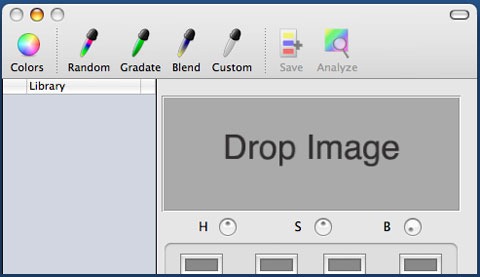
Colorate is a utility for creation of harmonized color palettes and color schemes, aimed from hobbyist to professional designers.

20. Paintbrush


paintbrush-mac(1)

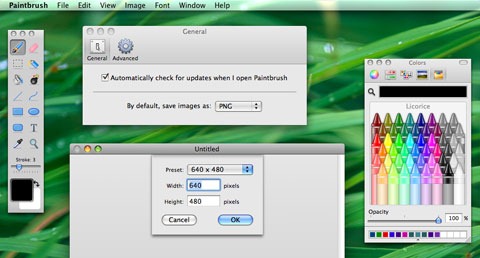
Paintbrush is a simple paint program for Mac OS X, reminiscent of Microsoft Paint and Apple’s own now-defunct MacPaint. It provides users with a means to make simple images quickly, something that has been noticeably absent from the Mac for years.

21. Seashore


shapeimage_5

Seashore is an open source image editor for Mac OS X’s Cocoa framework. It features gradients, textures and anti-aliasing for both text and brush strokes. It supports multiple layers and alpha channel editing. It is based around the GIMP’s technology and uses the same native file format.

22. Cyberduck


browser-bookmarks

An open source application which enable us to manage files in almost any remote locations including FTP, SFTP, WebDAV, Cloud Files, Amazon S3, Windows Azure and even Google Docs.

23. Chatbox


chatbox

Chatbox is a free app for the popular file storage/sharing solution Dropbox for commenting and/or discussing about files.

24. FileZilla


filezilla

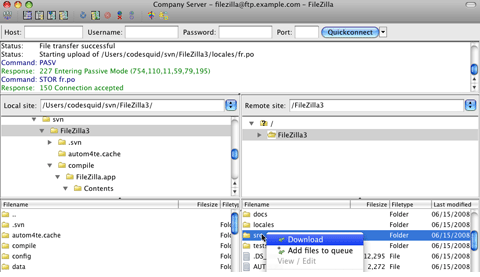
One of the most popular free FTP applications around which supports FTP, FTP over SSL/TLS (FTPS) and SFTP.

25. SvnX


23_523_500

An open source interface for SVN for browsing working copies, browsing logs and revisions of the repositories.It supports all major SVN commands, drag ‘n’ drop between repository browser and Finder is possible and integrates with FileMerge.

26. OneButton FTP


onebutton-ftp

OneButton FTP is a graphical FTP client for Mac OS X with a strong emphasis on simplicity, drag and drop usability, and file queuing. It allows you to easily transfer files to and from remote servers, such as the ones hosting your website, simply by dragging files to and from your computer.

27. Komodo Edit


komodo_edit_mac_720

Komodo Edit is a fast, smart, free and open-source code editor. Switching your trusty code editor is hard, but give Komodo Edit (or its big brother Komodo IDE) a try: it’ll be worth your while.

28. Aptana RadRails


R2-debug-lrg

Similar to Aptana Studio, RadRails is also a great code editor that is open source. With only one difference, it is focused on Ruby on Rails applications.It includes support for project navigation, smart code assistance, visual debugging and structure outlining.


29. Code::Blocks


Code Blocks

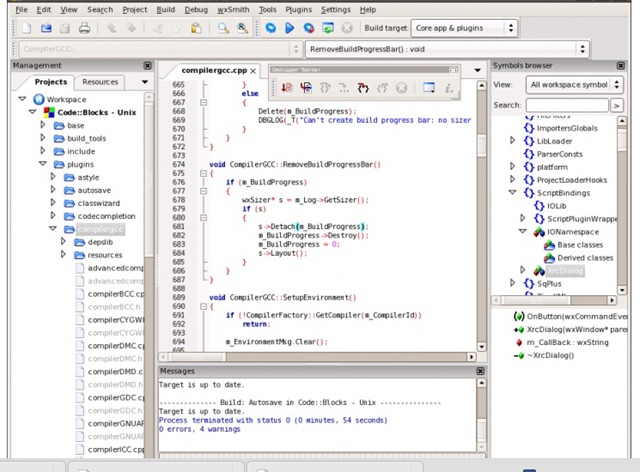
Code::Blocks is a free C++ IDE built to meet the most demanding needs of its users. It is designed to be very extensible and fully configurable.

30. Simple CSS


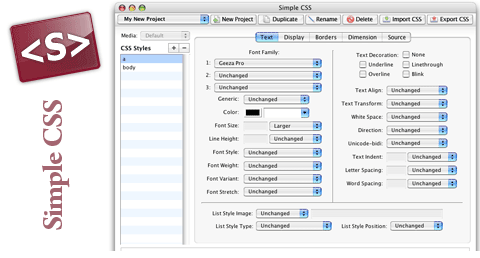
simple-css

Cascading Style Sheets (CSS) is a good way to specify the styles of fonts and other page elements on your sites. It makes it easier for you to update styles too, because when done right, you only need to make a single change to update the styles on multiple pages and elements.

31. WebScripter


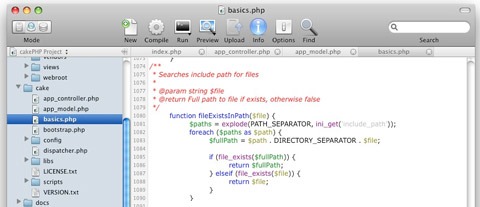
web-scripter-ide

WebScripter IDE is for the web programer who demands a compact GUI and powerful editor which brings together all the elements of the trade into a single interface. Designed with the principal in mind: “everything you need, needs to be where you need it” WebScripter will help give you a place to work where you’re productive and comfortable because you’re surrounded by the tools you need to get the job done.

32. Geany


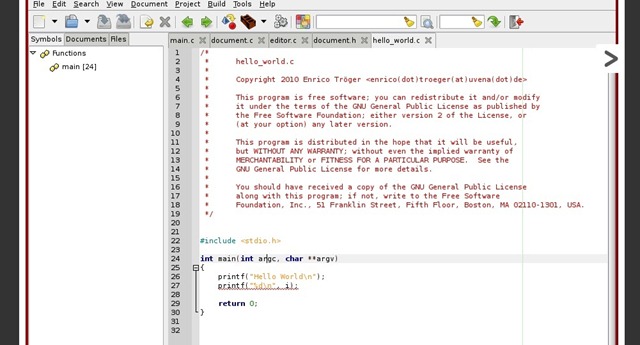
Geany

Geany is a text editor using the GTK2 toolkit with basic features of an integrated development environment. It was developed to provide a small and fast IDE, which has only a few dependencies from other packages. It supports many filetypes and has some nice features.

33. Kod


Kdevelop_assistant

Kod is a text editor built for programmers with syntax highlighting, tabbed windows and an integrated scripting environment based on Node.js.The styling of the editor can be completely customized with CSS3.

34. Xcode


new_single_window20110308

Xcode is the complete toolset for building Mac OS X and iOS applications — and with Xcode 4, the tools have been redesigned to be faster, easier to use, and more helpful than ever before. The Xcode IDE understands your project’s every detail, identifies mistakes in both syntax and logic, and will even fix your code for you. Quite simply, Xcode 4 will help you write better code.

35. Eclipse


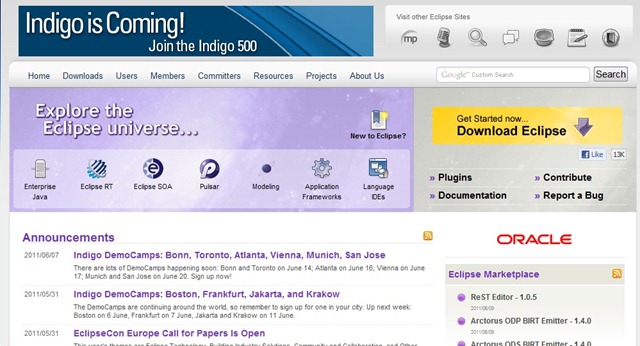
Eclipse

Eclipse is a free, state-of-the-art Java development environment (there are also JS, PHP and C/C++ versions).It has a very active community and many open source plugins + developer tools built around the ecosystem.

36. NetBeans


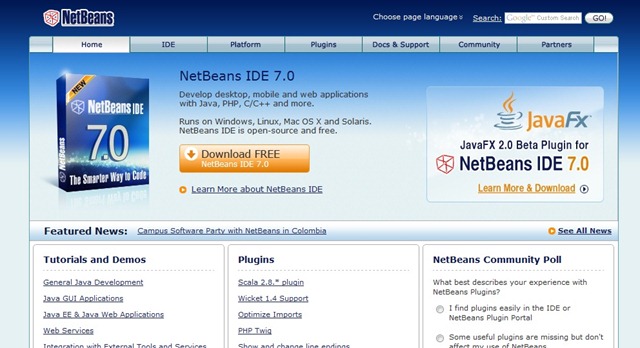
Netbeans

It consists of an open-source IDE and an application platform that enable developers to rapidly create web, enterprise, desktop, and mobile applications. Java is the main platform and it also supports JavaFX, PHP, JavaScriptx, Ruby +Ruby on Rails, Groovy and Grails and C/C++.

37. GitX


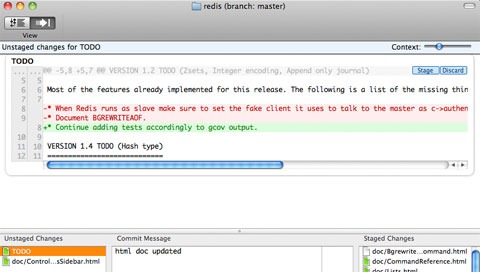
gitx-mac

GitX is a git GUI made for Mac OS X. It currently features a history viewer much like gitk and a commit GUI like git gui. But then in silky smooth OS X style!

38. MAMP


mamp

The abbreviation “MAMP” stands for: Macintosh, Apache, Mysql and PHP. With just a few mouse-clicks, you can install Apache, PHP and MySQL for Mac OS X. MAMP installs a local server environment in a matter of seconds on your Mac OS X computer, be it PowerBook or iMac. Like similar packages from the Windows- and Linux-world, MAMP comes free of charge.

MAMP is installed in the typical Mac fashion: very easily. MAMP will not compromise any existing Apache installation already running with your OS X. You can install Apache, PHP and MySQL without starting a script or having to change any configuration files.

39. Cocoalicious


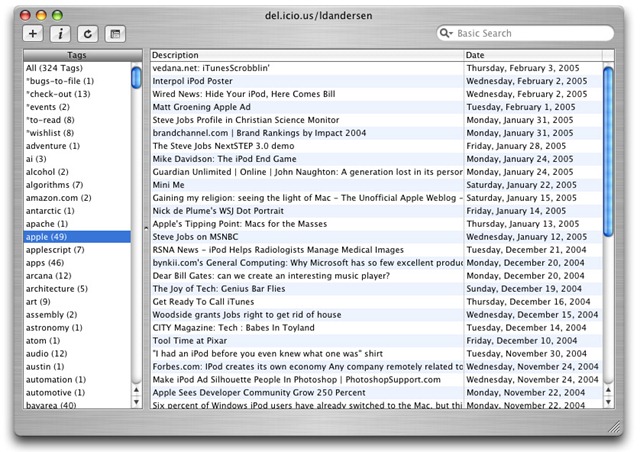
tag-filtering

Cocoalicious is a del.icio.us client for Mac OS X. It acts as a desktop interface to your del.icio.us bookmarks

Cocoalicious is open source, available under the terms of the BSD License. If happen to have an iPod (and who doesn’t these days?) and you’d like to support Cocoalicious development, you might consider purchasing an $8 license for PodWorks, my iPod song transfer application. Or, if you have an iPhone and use Twitter, you might check out Birdfeed, my iPhone Twitter client.

40. MochaCode


editorwindow

MochaCode is a Mac-exclusive Java IDE that earns its place on your dock by providing a distinctly “Mac” user experience. Text editors, keyboard shortcuts, toolbars, and more, all behave exactly as you’ve come to expect from a Mac application.


Author : Dustin Betonio


Dustin Betonio begin_of_the_skype_highlighting end_of_the_skype_highlighting is a Translation Management graduate at University of Mindanao. His earlier career was devoted on customer service outside the information highway. Currently studying Law in the same University.


"
read more